

Wondering what your professor sees on Turnitin? This full breakdown covers similarity scores, AI detection, metadata, and what stays hidden from instructor view.
Can Professors See Everything on Turnitin? Here Is the Full Breakdown
You hit submit. The clock stops. Then the waiting starts. Most students have stared at that confirmation screen and wondered exactly how much their professor can see on Turnitin. Does the instructor watch every keystroke? Can they read your deleted drafts? Do they get a secret alert if you ran a Turnitin check through a third-party service before uploading? These questions matter because knowing what is visible, and what is not, changes how you approach academic writing. This article gives you a complete, honest breakdown of the Turnitin instructor view so you can stop guessing and start writing with confidence.
The Instructor Dashboard: What Your Professor Actually Sees
When your paper lands in Turnitin, it does not just sit in a folder. It generates a detailed report that your instructor can access through their Learning Management System or directly through Turnitin Feedback Studio. The amount of information available depends on your institution’s license and the assignment settings your professor chose.
Similarity Score and Match Breakdown
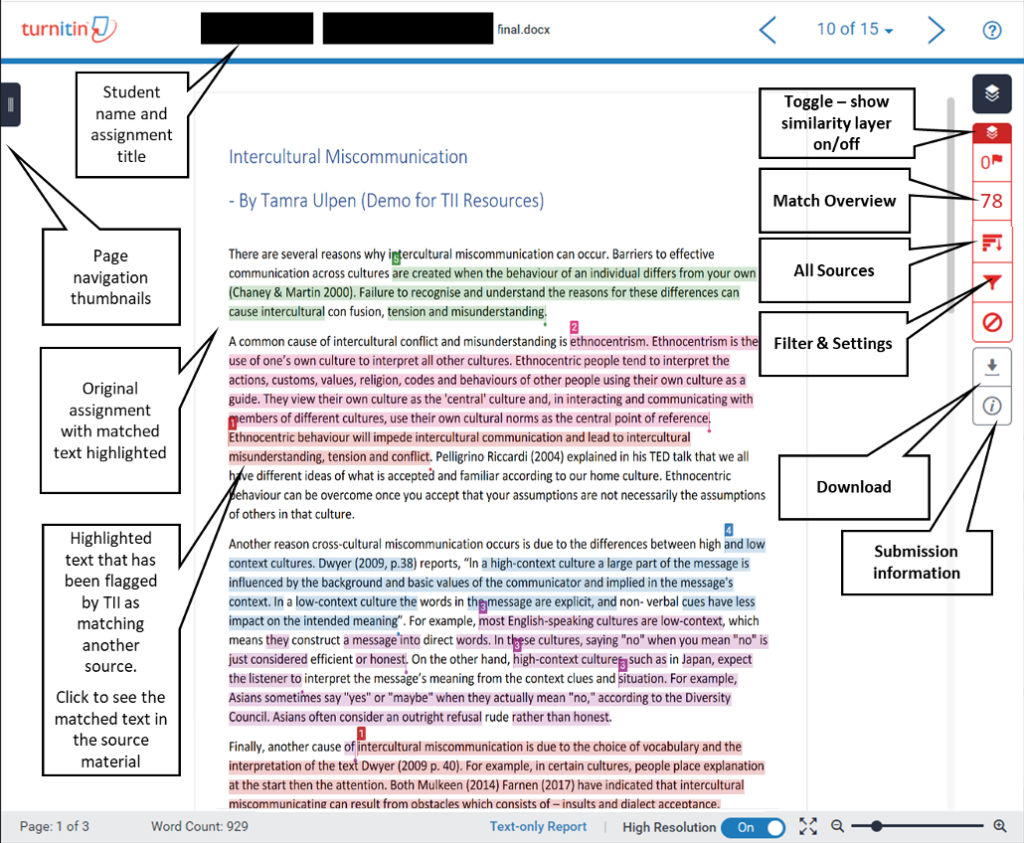
The first thing most professors notice is the similarity percentage. This number represents how much of your text matches content in Turnitin’s database, which includes billions of web pages, academic journals, books, and previously submitted student papers. Instructors do not just see a raw number, though. They get access to the full Similarity Report, which highlights matched text and links directly to the original sources.
Turnitin’s newer reports organize these matches into groups based on how you used the source material. The system categorizes matches as “Not Cited or Quoted,” “Missing Quotation,” “Missing Citation,” or “Cited and Quoted.” Your professor can click any match to compare your text side-by-side with the source. This makes it easy for them to spot missing quotation marks, forgotten citations, or sections that rely too heavily on a single source.
AI Detection Results
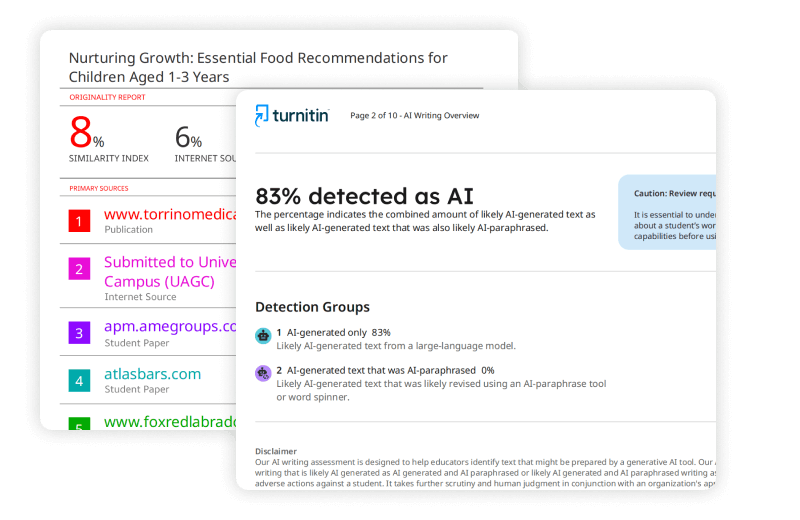
If your institution licenses Turnitin Originality, your professor also sees an AI writing detection score. This is separate from the similarity score and measures how much of your prose Turnitin suspects was generated by artificial intelligence. Turnitin’s model flags content only when it reaches at least 98% certainty, and scores below 20% display as an asterisk to reduce false positives .
The AI report uses color coding. Cyan highlights likely AI-generated text. Purple marks text that appears AI-generated and then paraphrased by a tool like Quillbot. Your professor sees these highlights, the overall percentage, and a breakdown of how the model classified different sections .
Here is the part that surprises many students: you usually cannot see this AI score. Turnitin’s own documentation confirms that the AI writing detection indicator and report display only to instructors and administrators . Students typically see only the similarity score, and even that depends on assignment settings.

Check before you submit. Get Turnitin Score Report in 15 Minutes.
Don't risk the 'Red' score. Get the exact same Turnitin report your supervisor uses. You will receive a full PDF similarity report including AI detection.
Submission Metadata and Timing
Your professor sees the exact date and time you submitted your paper, down to the minute. They also see your Submission ID, which is a unique identifier for that specific upload. If you submitted multiple times, the instructor can see how many attempts you made. They may also see document metadata embedded in your file, such as the author name, the software used to create the document, and the “last modified by” field . This metadata can sometimes reveal if someone else edited your file before you submitted it.
Standard Uploads vs. Turnitin Clarity: The Visibility Gap
Not every Turnitin assignment works the same way. The visibility of your writing process depends entirely on which Turnitin product your course uses.
File Upload Assignments
In most courses, you upload a finished Word document or PDF. In this setup, your professor sees only the final version of your file. They cannot replay your editing process. They cannot see what you typed and deleted. Turnitin does not capture keystrokes or maintain a version history for standard file uploads .
If you resubmit a new file before the deadline, the new upload usually overwrites the old one. Your professor typically sees only the most recent submission, and previous versions disappear from the assignment folder. Turnitin explicitly states that previous submissions, including previous reports and feedback, cannot be restored if they were overwritten .
Turnitin Clarity and Writing Reports
Some courses use Turnitin Clarity, which is a built-in writing space where students compose their papers directly inside Turnitin. This changes everything. With Clarity, your professor can see your entire drafting process. The system captures snapshots of your writing over time, logs insertions and deletions, and records paste events. Instructors get a Writing Report that includes a timeline or playback of how your text changed .
Turnitin Clarity also flags low writing time, low modification rates, and pasted text. If you paste a large block of text into the Clarity editor, the system logs it. If that pasted text is greater than 300 words and likely AI-generated, the Writing Report shows the estimated percentage of AI involvement . This means trying to hide your process by writing offline and pasting everything at the last minute will backfire in a Clarity assignment.
Draft Coach Privacy
Draft Coach works differently. It is a browser add-on for Google Docs and Word Online that lets you check your own similarity score while you write. Your professor cannot see your Draft Coach reports. Turnitin confirms that only the student who runs the report can view the results, and Draft Coach checks do not add your document to Turnitin’s repository . This tool is purely for self-checking, so your professor has no visibility into how many times you ran a similarity scan before submitting your final paper.
What Professors Cannot See (Despite Popular Myths)
Let us clear up some common misconceptions. Your professor cannot see:
- Your browser history or what websites you visited while writing
- Your Google Docs version history or Microsoft Word track changes
- Every keystroke you made in a standard file upload
- Whether you used a third-party Turnitin score check service before submitting, unless that service added your paper to a public database
- Your deleted drafts from previous submissions if those drafts were overwritten
- Images, charts, or visual content checked for originality; Turnitin analyzes text only
Your professor also cannot see your AI detection score unless your institution has enabled Turnitin Originality and the instructor has accessed the report. Even then, Turnitin advises that AI scores should not be used as the sole basis for adverse actions against a student .
How the Turnitin Score Check Works from the Instructor Side
Understanding how your professor interprets the report helps you write smarter. The Similarity Report is not a plagiarism verdict. It is a tool that highlights areas needing review.
Match Groups and Source Cards
The enhanced Similarity Report groups matches into categories. This helps your professor quickly identify whether a high similarity score comes from properly cited quotes or from uncited paraphrasing. Source cards let instructors review your matched text alongside the original source without leaving the report. This side-by-side view makes it obvious when a student has swapped a few synonyms but kept the original sentence structure .
The Flags Panel
Turnitin’s Flags Panel highlights potentially manipulated text. This includes hidden characters, replaced letters, or unusual formatting that students sometimes use to trick detection systems. If your paper contains weird spacing, Cyrillic characters replacing Latin ones, or white text on white background, the Flags Panel will alert your professor .
Resubmissions, Overwrites, and Draft Visibility
Students often worry that every failed attempt lives forever in Turnitin. For standard assignments, this is not true. When you resubmit, the new file replaces the old one. Your professor sees the submission count, but they do not automatically see a folder full of every draft you ever uploaded .
There is one exception. If your professor created separate draft assignments, or if your course uses Turnitin Clarity with multiple submissions enabled, earlier versions may remain accessible. In Clarity, instructors can review submissions immediately after you upload, even before the due date . So if you submit a rough draft at noon and a final version at midnight, your professor might have already seen the rough draft.
AI Detection Reports: Why Students Rarely See Them
The asymmetry between student and instructor views frustrates many people. You get a similarity score. Your professor gets that plus an AI detection percentage. Why the difference?
Turnitin designed it this way intentionally. The company states that AI detection should support educator judgment, not replace it. By showing AI scores only to instructors, Turnitin aims to prevent students from gaming the system through repeated trial-and-error submissions . If you could see your AI score instantly, you might tweak and resubmit until the number dropped, which would defeat the purpose of honest writing assessment.
Some institutions have disabled AI detection entirely. UC San Diego Extended Studies, for example, turned off the AI writing detection tool in Spring 2025 while keeping the plagiarism checker active . This means visibility varies not just by assignment, but by school policy.
Practical Steps to Understand Your Visibility
If you are unsure what your professor can see, take these steps:
- Check which Turnitin product your assignment uses. Look for clues in your submission portal. If you are typing directly into a Turnitin editor with “Last saved” timestamps, you are probably using Clarity.
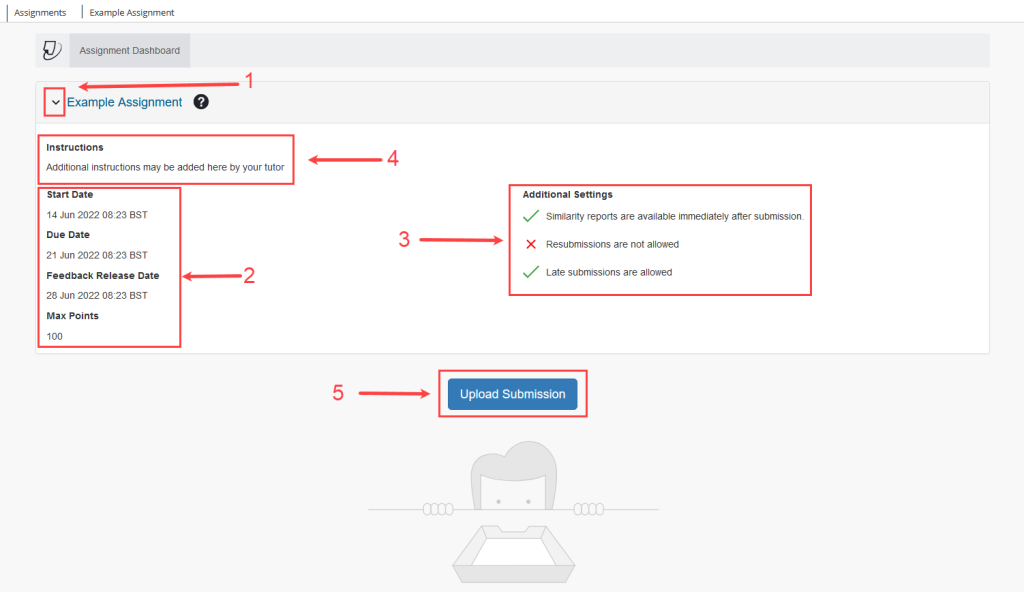
- Read the assignment settings. Some instructors allow students to view similarity reports before the deadline. Others restrict reports until after the due date. If you cannot see your report, it is almost always because of a setting, not because you are flagged .
- Ask directly. A simple email asking whether students can view similarity reports before the deadline is completely reasonable. It shows you care about getting citations right.
- Review your document metadata. Before submitting, check the file properties. Make sure the author name matches your own and that the “last modified by” field does not reveal unexpected editors.
- Write in your own voice. The best defense against both similarity flags and AI detection is genuine, original writing. Read your sources, close them, and write from memory in your own style.
When You Need a Turnitin Check Before Submitting
Sometimes you want to preview your similarity score before the official submission. You have a few options.
If your course offers Draft Coach, use it. It gives you Turnitin-level feedback without storing your paper in any repository . This means your draft will not match against itself later.
If Draft Coach is not available, some students use third-party Turnitin score check services. These services run your paper through Turnitin and give you a report that mirrors what your professor sees. The key difference is that reputable services do not store your paper in Turnitin’s database, so you avoid self-plagiarism issues. This can be especially useful if you want to check your AI detection risk, since most students cannot access the official AI report through their school portal.
Understanding the similarity score
The Bottom Line
Your professor sees more than you do on Turnitin, but they do not see everything. They get the similarity score, the full match breakdown, the AI detection percentage, your submission timing, and your document metadata. If your course uses standard file uploads, they do not see your editing history. If your course uses Turnitin Clarity, they see your entire writing process, including paste events and drafting timelines.
The gap between student view and instructor view exists by design. Turnitin wants professors to have enough information to start conversations about academic integrity, not to automate punishments. If you understand what is visible and what stays private, you can focus less on outsmarting the system and more on writing work that is actually yours. That is the only Turnitin check that truly matters.